

My Clients
Main Navigation:
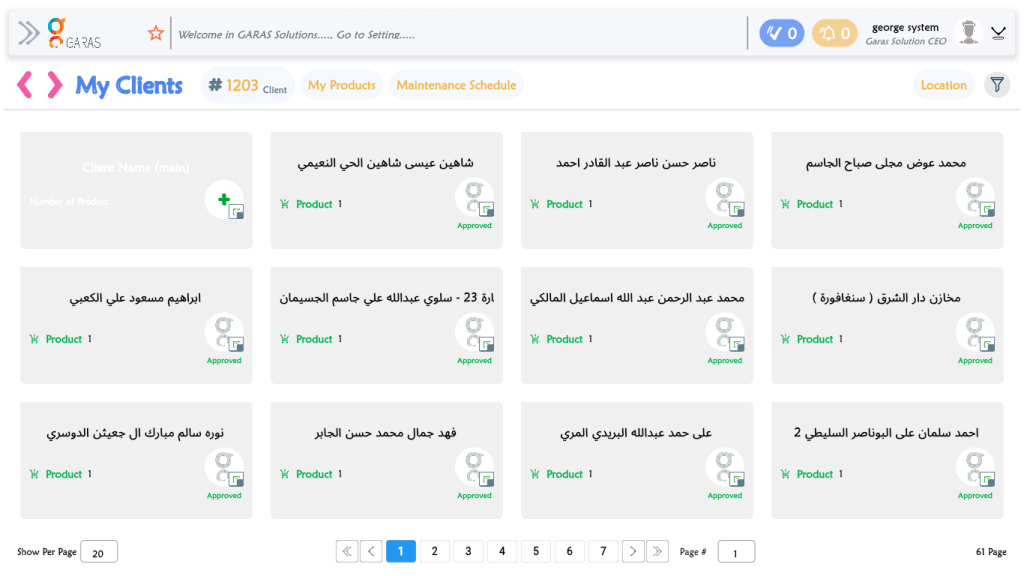
The “My Clients” tab is active, indicating this is the current view.
It shows a total count of clients.
Other available tabs are “My Products” and “Maintenance Schedule.”
Filtering:
A “Location” filter is visible, allowing the user to sort or narrow down the client list by their location.
Client List (Grid View):
The main area displays all clients as individual cards.
“Add New Client” Card:
The first card appears to be a template for adding a new client.
It has fields for “Client Name (main)” and “Number of Product.”
It features a large “Add” icon (
+) to create a new client entry.
Existing Client Card:
Each client in the list has their own card, which shows:
Client Name (e.g., “…..”)
Product Count (e.g.”)
Status: An “Approved” status is shown with a stamp icon, indicating the client’s profile is complete or verified.
Other Icons: A document/clipboard icon is also present, likely for viewing more details or reports.
Pagination:
At the bottom, there are controls to navigate through the large list of clients.
Show Per Page: A dropdown to select how many clients to display (e.g., 20).
Page Numbers: A list of pages (1, 2, 3…) to jump to.
Page Input: A box to type in a specific “Page #” to navigate directly.
Total Count: It shows the total number of pages (e.g., “61 Page”).