
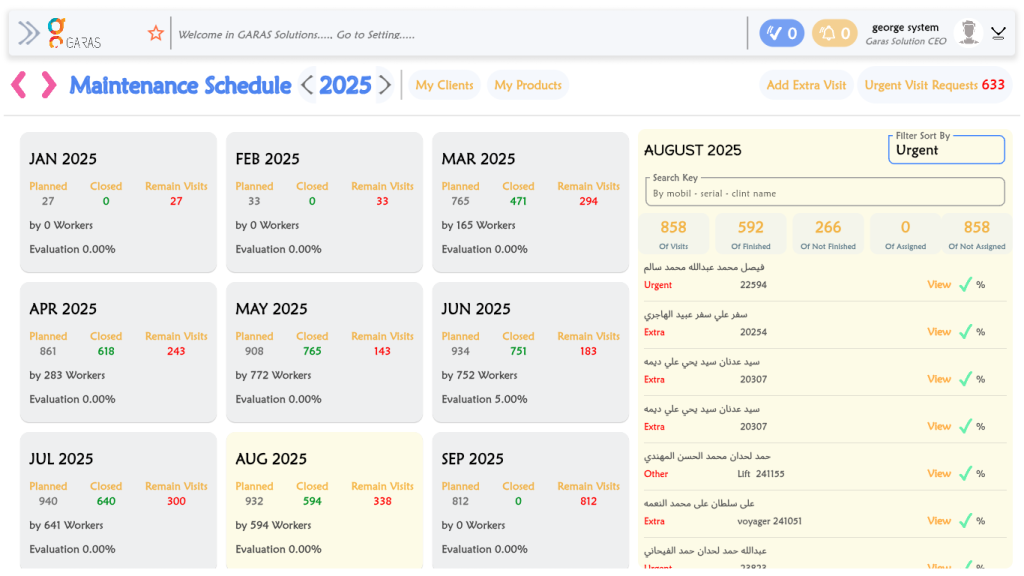

Maintenance Schedule Overview :
This is the starting view. It shows an entire year at a glance, broken down by month.
View: The user sees 12 summary cards, one for each month.
Monthly Card Details: Each card is a high-level summary showing statistics for:
Planned: The total number of maintenance visits scheduled.
Closed: The number of visits that have been completed.
Remain Visits: The number of visits still pending.
by X Workers: The number of workers involved in that month’s visits.
Evaluation: A performance metric.
2. Step 2: Selecting a Month (Drill-Down)
To get more details, the user selects a specific month.
Action: Clicking on any of the monthly summary cards.
Result: This opens a detailed, interactive panel on the right side of the screen, which is the main “form” area for that selected month.
3. Step 3: Interacting with the Detailed Month “Form”
This right-hand panel is the main interactive “form” where the user can find, filter, and review specific visit details for the selected month.
A. Summary Statistics: At the top, it shows a specific summary for the selected month’s data, such as “Of Visits,” “Of Finished,” and “Of Not [Finished/Started].”
B. Search Function (Form Input):
A search bar is provided to find specific visits.
Field: “Search Key”
Searchable by: “mobil,” “serial,” “clint name.”
C. Filter Function (Form Dropdown):
A dropdown menu allows the user to filter the list of visits.
Filter Options:
Normal
All Day in Month
Area
Urgent
D. Visit List (Form Output):
The main part of this panel is a scrollable list of all individual maintenance visits for that month, showing the specific date and day for each entry.